
· Right On Tech · Security Guides & Updates
The 3-2-1 Backup Rule (and 3-2-1-1-0) Explained for Small Offices
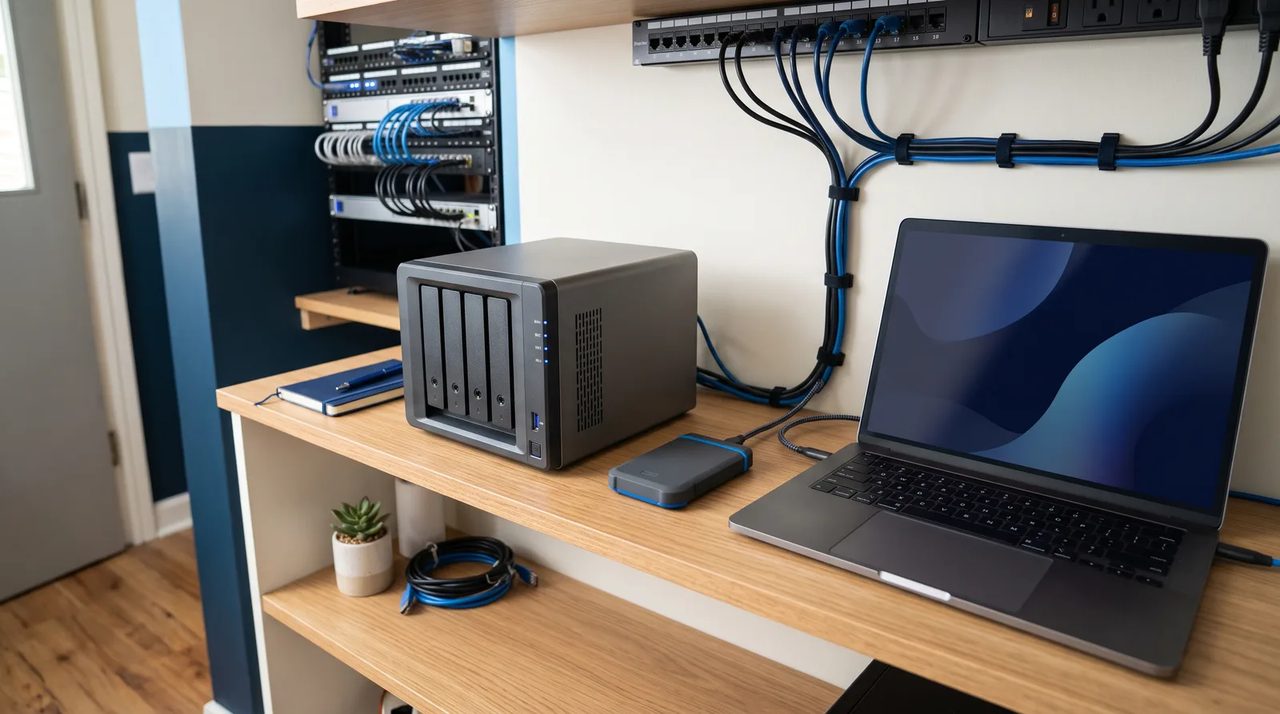
Most small businesses have some kind of backup. The trouble usually shows up on the day it is needed: the external drive was plugged in and got encrypted along with everything else, the cloud sync faithfully copied the deleted folder, or nobody had ever tried a restore.
The 3-2-1 rule, and its newer cousin 3-2-1-1-0, are simple ways to check whether your backups would actually save you. Here is what they mean in plain English and how to apply them in a small office.
The 3-2-1 rule
CISA's guide to data backup options sums it up like this:
- 3 copies of any important file: the original plus two backups
- 2 different types of storage, so one kind of failure cannot take out every copy
- 1 copy stored off site, outside your office
The idea is that no single event, such as a dead drive, a stolen laptop, a fire, a burst pipe or a ransomware attack, can destroy every copy at once.
The 3-2-1-1-0 version
Ransomware changed the picture. Attackers now look for backups on purpose and try to delete or encrypt them before they demand payment. CISA's #StopRansomware Guide warns about exactly this and recommends keeping offline, encrypted backups and testing them regularly. Backup vendors popularized two extra digits that capture the same advice:
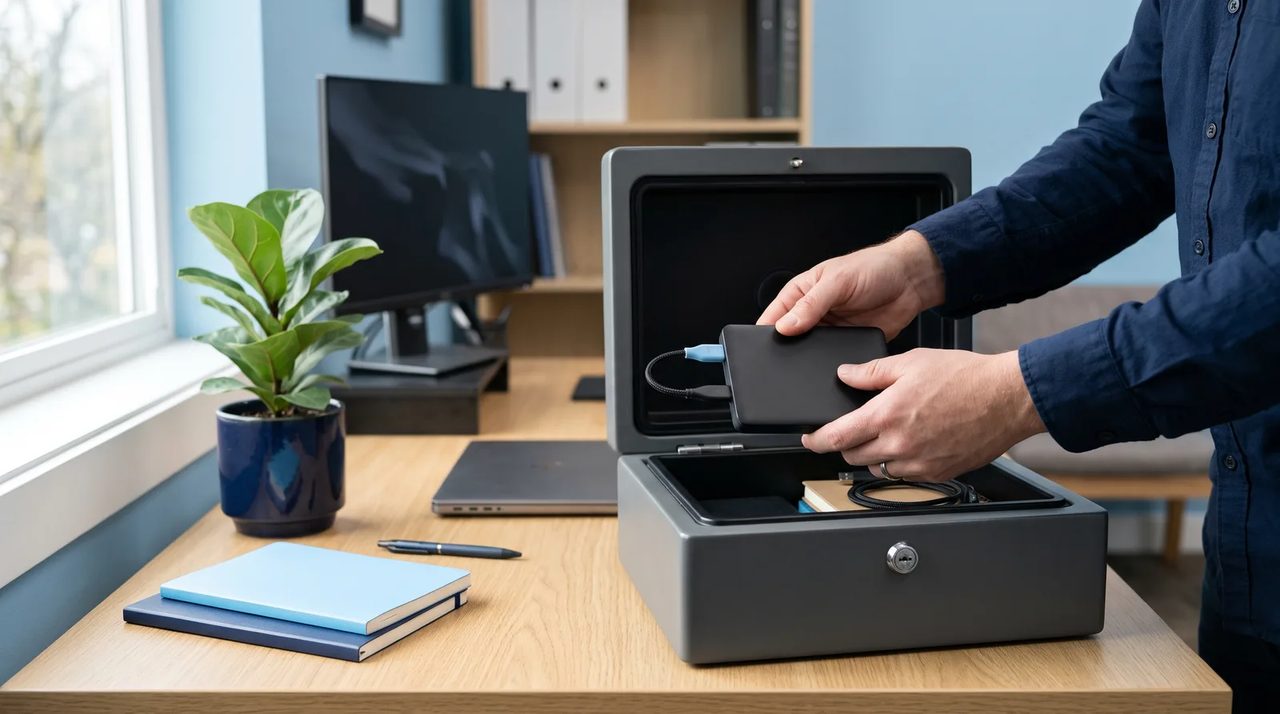
- 1 copy that is offline, air-gapped or immutable (it cannot be changed or deleted, even by an administrator account that has been taken over)
- 0 errors when you verify backups and test restores
The extra "1" protects you from an attacker who has your passwords. The "0" protects you from the most common backup failure of all: a backup that quietly stopped working months ago.

What 3-2-1-1-0 looks like in a small office
You do not need a data center. A typical setup for a 5 to 50 person office might look like this:
| Copy | Where it lives | What it protects against |
| 1. Original | PCs, file server, Microsoft 365 | Everyday work |
| 2. Local backup | A network storage device (NAS) or backup appliance in the office | Fast restores after a deleted file or failed drive |
| 3. Off-site backup | A cloud backup service in a different provider or region | Fire, theft, flood, total office loss |
| +1 Offline or immutable | Cloud storage with immutability lock, or a rotated drive kept off site and unplugged | Ransomware and stolen admin passwords |
| 0 errors | Backup reports plus scheduled test restores | Silent backup failures |
The two "types of storage" can be the local appliance and the cloud. What matters is that one problem cannot reach both.
Microsoft 365 needs its own backup plan
A common belief is that Microsoft backs up everything in Microsoft 365 for you. Microsoft does keep your data highly available, with redundant copies in its data centers. But redundancy protects against Microsoft's hardware failing, not against someone in your office (or an attacker using their account) deleting or encrypting your files. Those changes sync everywhere.
The built-in safety nets have time limits:
- SharePoint and OneDrive: deleted items stay in the recycle bins for 93 days, then they are gone.
- Exchange Online email: items emptied from Deleted Items are kept for 14 days by default, adjustable up to 30 days.
- Version history helps with a bad edit to one file, but it is not a way to roll back a whole library after an attack.
Retention policies and litigation holds are compliance tools, not backups. They keep data for legal reasons, but restoring a mailbox or site from them is slow and awkward.
Your options for Microsoft 365
- Microsoft 365 Backup: Microsoft's own pay-as-you-go backup service for OneDrive, SharePoint and Exchange, billed at $0.15 per GiB per month of protected data. Microsoft says its backups use append-only storage and stay inside the Microsoft 365 boundary.
- Third-party Microsoft 365 backup: services that copy your mail, OneDrive, SharePoint and Teams files to storage outside Microsoft. This gives you a copy with a different provider, which fits the off-site idea of 3-2-1 more closely.
Either is far better than nothing. Many businesses use one backup inside Microsoft for fast restores and one outside it for independence.
Things people forget to back up
- Laptops that rarely visit the office
- Accounting files and line-of-business databases stored on a single PC
- The NAS itself, if it is the only place some files live
- Your website and its database
- Firewall, switch and server configurations
- Password manager vaults and recovery keys (BitLocker keys especially)
Common mistakes
- Treating sync as backup. OneDrive, Dropbox and similar tools copy deletions and encrypted files just as faithfully as good ones.
- Leaving the backup drive plugged in. If a PC can see the drive, so can ransomware running on that PC.
- Using the same admin password everywhere. If the backup console shares a login with the server, one stolen password reaches both.
- Keeping backups forever on one device. A single NAS holding years of backups is still a single point of failure.
Two numbers to agree on
Before choosing tools, decide two things as a business owner, not as a technician:
- How much work can you afford to lose? If the answer is "no more than an hour", backups must run at least hourly. This is called the recovery point objective (RPO).
- How long can you be down? If the answer is "one day", you need a restore method that can bring back your key systems within a day. This is the recovery time objective (RTO).
These answers drive the cost. A shorter window means more frequent backups and faster restore options.
Test restores: the "0" that matters most
A backup you have never restored is a hope, not a plan. Build a simple routine:
- Daily: someone (or your IT provider) checks the backup report and follows up on any failure.
- Monthly: restore a few random files and one mailbox item, and confirm they open.
- Quarterly or twice a year: restore a whole server, PC or SharePoint site to a test location and time how long it takes.
- After any big change: new server, new software, office move, or new Microsoft 365 sites.
Your backup checklist
- Every important system and data source is listed, including Microsoft 365
- At least three copies exist, on two types of storage
- One copy is off site, with a different provider or location
- One copy is offline or immutable, and backup admin accounts use MFA
- Backups are encrypted
- Backup reports are checked every working day
- Test restores are done on a schedule and the results are written down
- Everyone knows who to call to start a restore
Not sure where you stand?
If you are not certain your backups would survive a ransomware attack, it is worth finding out before you need them. Right On Tech designs and monitors backups for small offices, including Microsoft 365, and runs the test restores for you. Contact us for a backup review.