
· Right On Tech · Technical Guides
Office Wi-Fi Done Right: Guest Networks, WPA3, VLANs and Access Points

In many small offices, Wi-Fi grew one gadget at a time: the internet provider's router, a range extender for the back room, a password that has not changed in years and is printed on a sticky note in the lobby. It works, mostly. But it is often slower than it should be, and everyone (staff, visitors, the smart TV and the security cameras) shares the same network as the computer that runs payroll.
Getting office Wi-Fi right is not complicated. It comes down to four things: separating who and what connects, using current security, planning the network behind the Wi-Fi, and putting enough access points in the right places.
1. Separate networks for staff, guests and devices
The single most valuable change is to stop putting everything on one network. A typical small office needs three or four:
| Network | Who uses it | What it can reach |
| Staff | Company laptops and phones | Internal files, printers, servers, internet |
| Guest | Visitors, personal phones | Internet only, isolated from each other |
| Devices / IoT | Cameras, smart TVs, door controllers, thermostats | Only the specific services they need |
| Voice / payments (if used) | Desk phones, card terminals | Their provider's services only |
Why it matters: if a visitor's phone or a cheap camera is infected, it cannot see your file server or your accounting PC. It also keeps the security of your business separate from a password you hand out freely.
Guest network tips
- Turn on client isolation so guest devices cannot see each other.
- Block guest access to your internal address ranges at the firewall, not just in the Wi-Fi settings.
- Set a bandwidth limit per guest so one big download does not slow the office.
- Change the guest password regularly, or use a captive portal or daily code if your system supports it.
- Consider Wi-Fi Enhanced Open (also called OWE) for a guest network with no password: the Wi-Fi Alliance describes it as providing encryption to users without a public passphrase to manage.
2. Use WPA3 (and know when you need WPA2 still)
WPA3 is the current Wi-Fi security standard. According to the Wi-Fi Alliance, WPA3-Personal gives increased protection against password-guessing attempts, and WPA3 is mandatory for Wi-Fi CERTIFIED devices.
- WPA3-Personal uses one shared password per network. Fine for small offices, as long as the password is long and changed when people leave.
- WPA3-Enterprise gives each person their own sign-in (often tied to Microsoft 365 or another directory). When someone leaves, you disable their account and their Wi-Fi access stops too. Worth considering from roughly 15–20 staff, or sooner if you handle sensitive data.
- WPA2/WPA3 transition mode lets older devices connect with WPA2 while newer ones use WPA3. Useful during an upgrade, but plan to retire old devices that only support WPA2.
If you are buying Wi-Fi 6E or Wi-Fi 7 equipment, note that the 6 GHz band only allows WPA3 or Enhanced Open security, according to Cisco's migration guide and Meraki's WPA3 configuration guide. Older devices simply will not see that band, which is one more reason to plan a separate network name or a transition period.
3. VLANs: the network behind the Wi-Fi
Separate Wi-Fi names (SSIDs) are only half of the job. Each one should land on its own VLAN (virtual LAN): a separate network segment that your firewall can control. Without VLANs, three Wi-Fi names can still all lead to the same network.
A simple plan for a small office might look like this:
VLAN 10  Staff      192.168.10.0/24   Wi-Fi: Office      (WPA3)
VLAN 20  Guest      192.168.20.0/24   Wi-Fi: Office-Guest (isolated, internet only)
VLAN 30  Devices    192.168.30.0/24   Wi-Fi: Office-IoT   (cameras, TVs, thermostats)
VLAN 40  Voice      192.168.40.0/24   wired desk phones
VLAN 99  Management 192.168.99.0/24   switches and access points only
Then set firewall rules between them. For example: staff may reach the printer on the device network; guests may reach only the internet; cameras may reach only the video recorder; nothing but IT can reach the management network. This needs a firewall and switches that support VLANs (most business-grade equipment does; most consumer routers do not).

4. Access points: more, smaller, better placed
One powerful router in the server closet is the most common cause of bad office Wi-Fi. Walls, glass, metal shelving and floors absorb signal, and a single radio can only serve so many devices at once. Business setups use several access points (APs) instead, mounted on ceilings and managed together.
Placement basics
- Mount APs on the ceiling, near where people actually sit, not hidden in closets or above metal ceiling tiles.
- Plan for capacity, not just coverage: a conference room full of laptops may need its own AP.
- Aim for overlapping coverage so devices can move between APs smoothly.
- Lower transmit power rather than raising it; too much power makes devices cling to a far-away AP.
- Let the system choose channels automatically, and avoid wide channels in the crowded 2.4 GHz band.
- Do a walk-through test (or a proper site survey for larger spaces) after installation.
Wiring and power
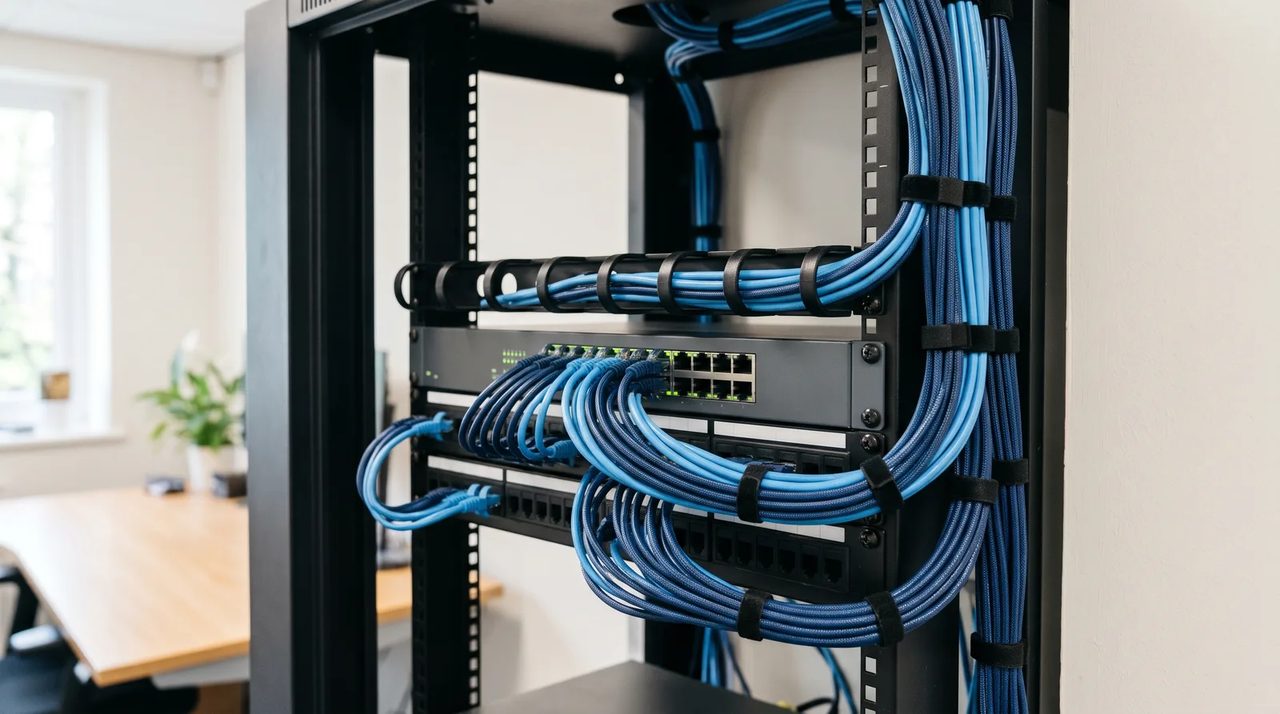
Business APs are best connected with Ethernet cable and powered over the same cable using PoE (Power over Ethernet). Check each AP's datasheet for its power class: some run on standard PoE+ (IEEE 802.3at), while many newer models need the higher-power 802.3bt to use all their features. Make sure your switch has enough total PoE budget for every AP and camera you plan to plug in.
Avoid wireless mesh and range extenders where you can run a cable. They work, but each wireless hop costs speed.
Central management
Choose APs that are managed together from one controller or cloud dashboard. You get one place to change the Wi-Fi password, push firmware updates, see which devices are connected and spot problems. Like firewalls, APs need security updates; check how long the vendor will support the model.
Office Wi-Fi checklist
- Separate SSIDs for staff, guests and devices, each on its own VLAN
- Guest network isolated and limited to internet access
- WPA3 enabled; WPA2 only where old devices still require it
- Strong passwords changed when staff leave (or WPA3-Enterprise with individual sign-ins)
- Ceiling-mounted APs planned for both coverage and capacity
- PoE switch with enough power budget for all APs
- Firewall rules between VLANs reviewed and documented
- Firmware updates scheduled for APs, switches and firewall
- Default admin passwords changed; management network restricted to IT
Want a second pair of eyes on your Wi-Fi?
Right On Tech designs and maintains office networks for businesses across Los Angeles and the San Fernando Valley, from small offices to multi-floor sites. If your Wi-Fi is slow, patchy or shared with every gadget in the building, we can assess it and recommend practical fixes. Contact us or read more about our managed IT service.